 ShopNx
Show your products in your WhatsApp catalogue
Your ShopNx store already makes a product feed for Meta. Add it to a catalogue in Meta’s Commerce Manager, connect that catalogue to WhatsApp, and your products, prices and stock show in WhatsApp, kept up to date on a schedule you choose.
1. Copy your store’s Meta catalogue address
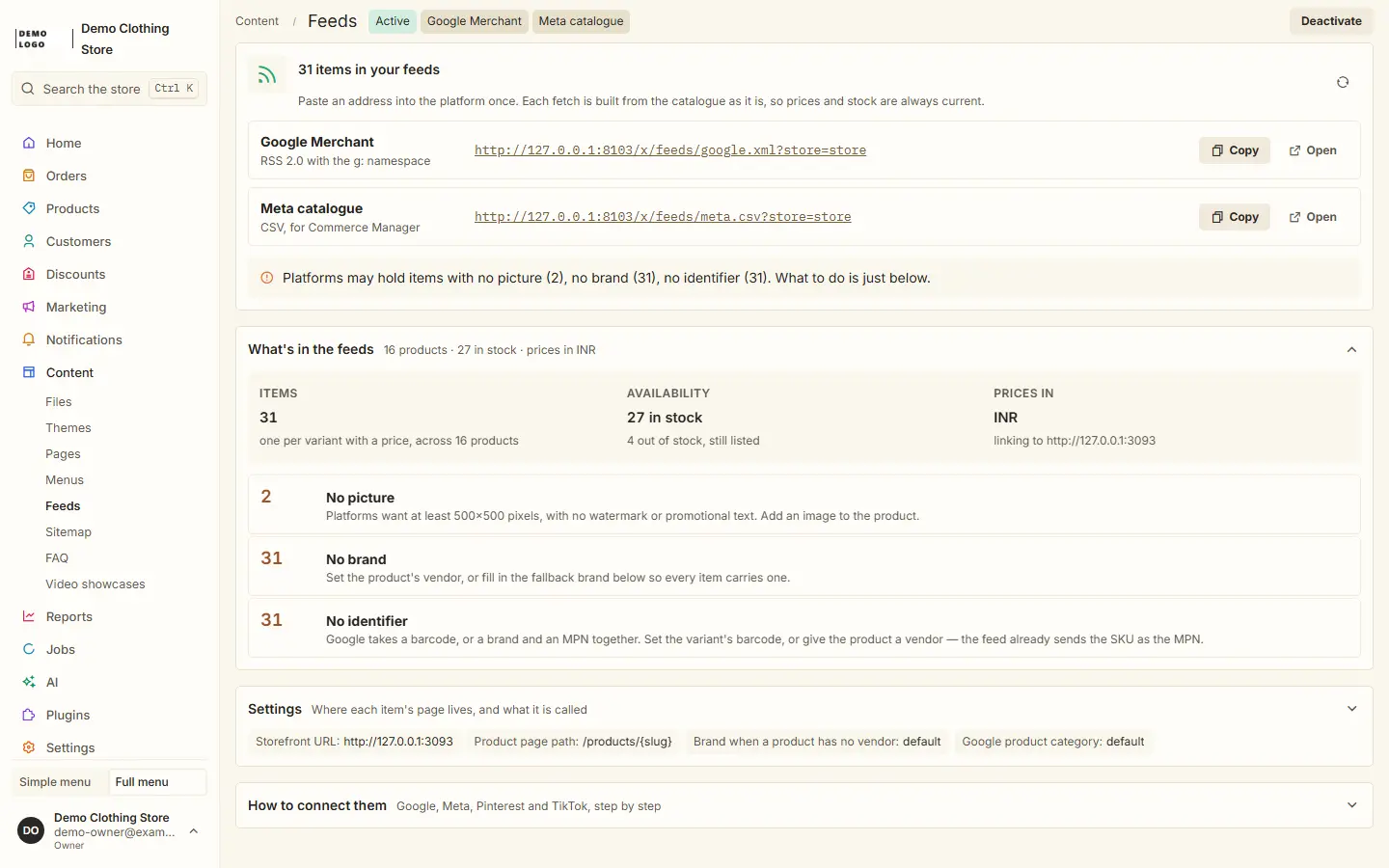
- In your ShopNx panel, go to Content › Feeds. If the feeds are off, press Turn them on.
- Open Settings on that screen and check the Storefront URL, since each product’s link uses it. Until it’s set, the screen says “Needs a storefront URL”.
- Press Copy next to Meta catalogue. The address ends in
/x/feeds/meta.csv?store=and your store’s name.
2. Add the feed in Commerce Manager
- Open Meta Commerce Manager and create a catalogue for e-commerce, or open the one you have.
- Go to Data sources and add items with a data feed, choosing a scheduled feed from a URL.
- Paste the address you copied, choose how often Meta fetches it (hourly, daily or weekly), and set the currency to INR. The Feeds screen’s “How to connect them” card repeats these steps.
3. Connect the catalogue to WhatsApp
- WhatsApp Business app: connect your WhatsApp account to the same Meta business, then open your catalogue in the app’s business tools.
- WhatsApp Business Platform: in Meta Business Suite, open WhatsApp Manager › your account › Catalogue, choose the catalogue and connect it. One catalogue per WhatsApp business account.
Meta renames its menus from time to time; its help page Connect a catalogue to your WhatsApp Business account has the current steps.
4. Optional: push changes within minutes
The scheduled feed waits for Meta’s next fetch. To send changes sooner, turn on Meta catalogue: push updates on the Feeds screen. New products appear, price and stock changes update, and drafted or deleted products are removed, within minutes. The scheduled feed stays on as the backstop.
- In Meta Business settings › Users › System users, add an admin system user.
- Under Assign assets › Catalogues, give it your catalogue with Manage catalogue.
- Give the system user a business app. If you have none, create one at developers.facebook.com.
- On the system user, press Generate new token: pick that app, expiry Never, tick
catalog_management, and copy the token. - In Commerce Manager, open the catalogue’s Settings and copy the Catalogue ID.
- Back on the push updates card, paste both, press Save, Turn on, then Push everything now once. After that, changes go by themselves.
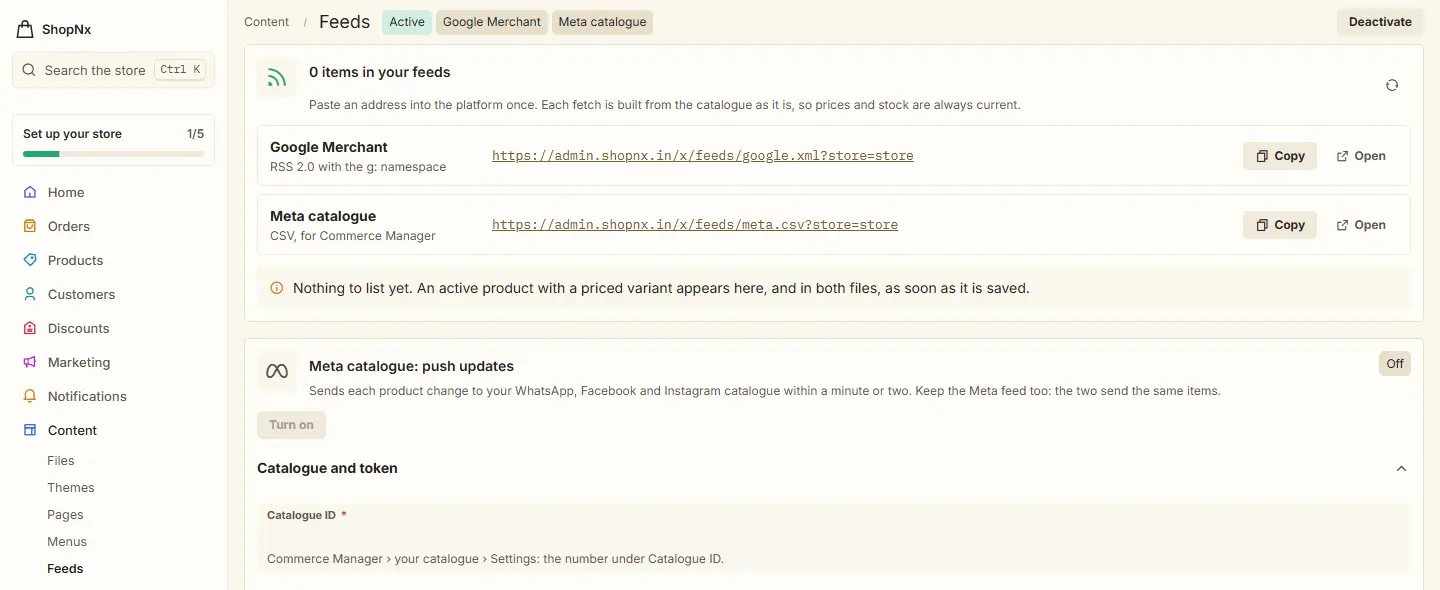
Keep the token private, like a password. If Meta stops accepting it, the card says “Needs a new token”; generate a new one and paste it in.
Before you start
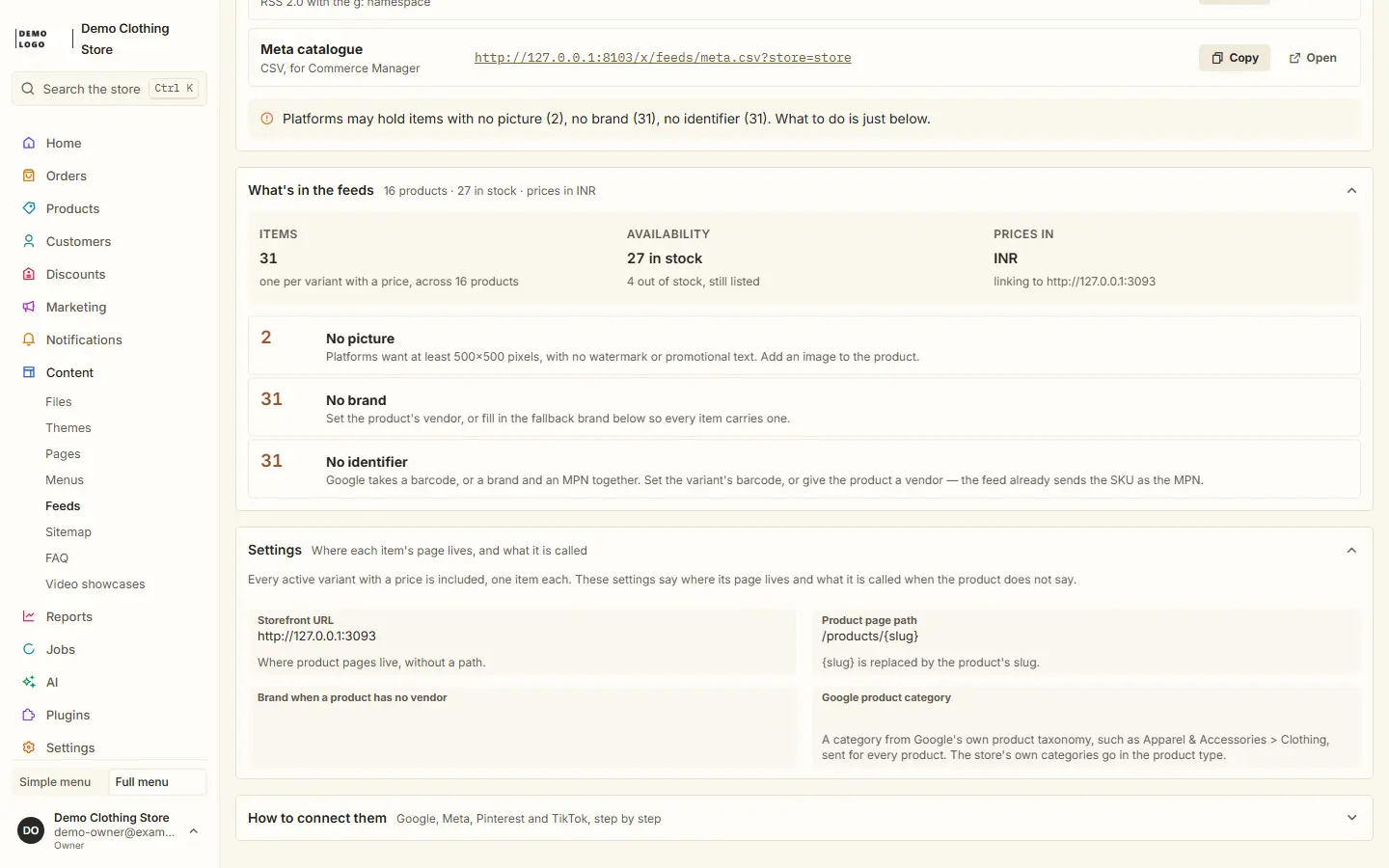
- Products need a picture and a brand. Set a fallback brand in the feed settings so every item has one.
- Only active products with a priced variant are sent. Sample products from a new store aren’t.
More on both feeds and the sitemap: Feeds and sitemap. Selling on WhatsApp in general: sell on WhatsApp.
WhatsApp and Meta are trademarks of Meta Platforms, Inc. ShopNx is not affiliated with or endorsed by Meta.
Questions sellers ask
Do price and stock changes reach WhatsApp?
Yes. With the scheduled feed alone, they arrive on Meta’s next fetch, hourly at most. Turn on push updates (step 4) and they arrive within minutes.
Do I need the WhatsApp Business Platform (API)?
No. The free WhatsApp Business app can show a catalogue too, once your WhatsApp account and the catalogue belong to the same Meta business.
Why is a product missing from the catalogue?
Only active products with a priced variant go into the feed, and Meta may refuse an item with no picture or no brand. The Feeds screen lists those, with the fix for each.
Can shoppers pay inside WhatsApp?
They pick products from the catalogue and send them to you in the chat. To take the order and payment, share the product’s link to your ShopNx store, where checkout, UPI and cash on delivery work as usual.